Introduction
Chordastic is the easiest way to create and manage lyrics and chord sheets. Designed for musicians of all levels, it automates the repetitive parts of chord sheet creation so you can focus on the music.
With Chordastic you can:
- Add chords above lyrics with a single click
- Automatically fill repeated sections (chorus, verse) with the same chords
- Display your sheet in a compact two-column layout to reduce page turns while performing
- Fully customize fonts, colors, sizes and spacing
- Search, organize and print your entire song library
Welcome Page
Every time Chordastic starts, the Welcome Page lets you choose your next action. From here you can create a new song, open a recent one, or browse your full song database.
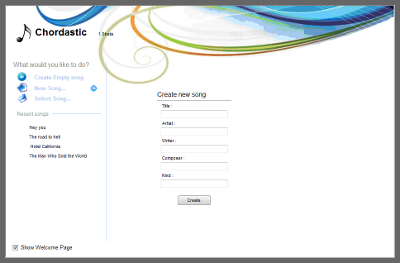
If you prefer to skip the Welcome Page on startup, uncheck the option at the bottom of the page. Chordastic will then open the last edited song directly.
Create Empty Song
Click Create empty song to open a blank song immediately. No title or artist information is required — you can fill those in later.
New Song
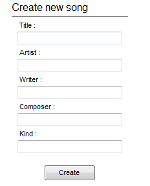
Click New song to create a song with metadata filled in upfront. Enter as many fields as you need — Title, Artist, Writer, Composer, Key — then press Create. The song opens ready to edit.
Select Song
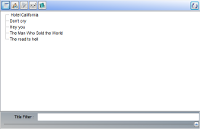
Click Select song to browse your existing song database and open any song by clicking on it.
Workspace
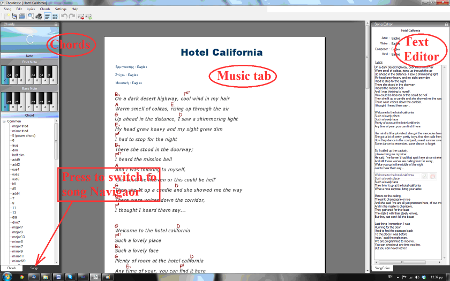
The Workspace is where you create and edit chord sheets. It contains:
- The music sheet view — where lyrics and chords are displayed
- The chord panel on the side — for selecting and placing chords
- The text editor panel — for editing lyrics and song information
- The song database panel — for opening and searching songs
Lyrics
There are three ways to add lyrics to your chord sheet:
- From a file — Go to Lyrics → Open from file… and select a
.txtfile containing the lyrics. This replaces any existing lyrics (and removes all placed chords). - From the clipboard — Copy the lyrics from anywhere, then go to Lyrics → Paste from Clipboard (or press
Ctrl+Shift+V). - Type from scratch — Use the built-in text editor to write lyrics directly.
Note: You cannot type lyrics directly on the music sheet. All lyric editing is done through the text editor panel.
Chords
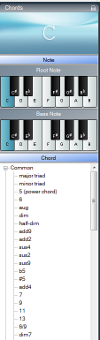
Placing chords is the core of Chordastic. In the chord panel, select:
- Root note — the base note of the chord (e.g. C, D, Em)
- Bass note — optional, for slash chords (e.g. G/B)
- Chord symbol — the quality (major, minor, 7th, etc.)
Then left-click above the lyric syllable where the chord change happens. The chord is placed instantly.
Moving and copying chords:
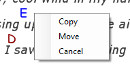
Right-click on an existing chord and drag it to a new position. A menu appears with options to Copy, Move, or Cancel.
Quick chord selection:
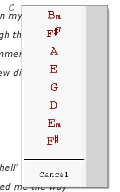
Right-clicking on an empty position shows a list of all chords already used in the song, making it faster to place repeated chords.
Autofill: If you place a chord and the same lyric line appears again below it, Chordastic automatically copies the chord to the matching line. This is especially useful for repeated choruses. You can disable this from the menu options.
Transposition: Use the transpose buttons on the toolbar (or the menu) to shift all chords up or down by a semitone at any time.
Repeat Symbols
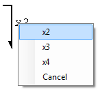
Many songs repeat sections. Instead of writing the lyrics again, use repeat symbols to indicate repeated lines visually.
Move your cursor to the right edge of a lyric line — a repeat symbol handle appears. Left-click and drag downward to create a bracket that spans the repeated lines.
Song Information
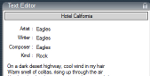
The right panel contains the text editor for lyrics and a section for song information (Title, Artist, Composer, Key, etc.). Click any field to edit it.
Filling in song information is optional but useful for:
- Advanced search in your song database
- Displaying the title and artist at the top of the printed sheet
Open and Search Songs
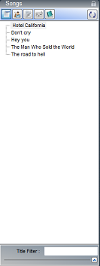
All chord sheets you create are stored in a Windows folder (configurable in Settings). To open a song, select the Songs tab at the bottom-left panel — your full song list appears. Click any title to open it.
Searching and filtering:
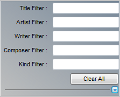
As your library grows, use the search filters to find songs quickly. Type the first few letters of a title, artist, or composer in the filter fields and the list updates instantly. Click the arrow to expand advanced search options.
You can sort the list by Title, Artist, Writer, Composer, or Kind using the column buttons at the top of the panel.
To delete a song, right-click its title and choose Delete. To delete multiple songs at once, use Windows File Explorer to remove the files, then press the Synchronize button to update Chordastic's database.
Settings
Go to Settings in the menu to open the settings panel. From here you can customise both the application behaviour and the visual appearance of your chord sheets.
General Settings
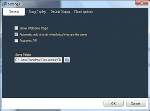
- Show Welcome Page on startup — toggle the welcome screen on or off
- Auto-add chords to matching lyrics — enable or disable the autofill feature
- Song folder path — set the folder where Chordastic saves and reads your songs
Display Settings
Control how your chord sheet looks on screen and in print.
Header:
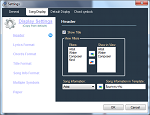
Choose which information appears at the top of the sheet. Enable Show Title to display the song title. Use the arrow buttons to move fields (Artist, Writer, Composer, Kind) between the available and visible columns.
You can also localise the field labels — for example, change "Artist" to "Artista" for Spanish sheets.
Display Format:
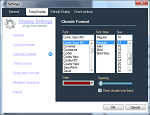
Customise the typography of every element on the sheet — lyrics, chords, title, and metadata. For each element you can set:
- Font family
- Font size
- Style (bold, italic, underline)
- Color
- Spacing between chords and lyrics, between lines, and between sections
Repeat Symbol Settings
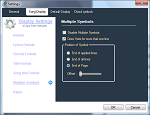
- Enable or disable repeat symbols globally
- Change the visual appearance (line style, color)
- Set the drawing position relative to the lyrics
Paper Settings
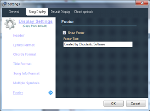
Adjust page margins for printing. You can also customise or hide the footer text that appears at the bottom of each printed page.
Paper settings are available to Full version users only.
Chord Symbol Settings
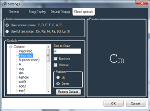
Change how chord names are displayed on the sheet. Options include:
- Use full text notes — display notes as Do, Re, Mi instead of C, D, E
- Minor triad symbol — change the minor indicator (e.g. use
-instead ofm, soCmbecomesDo-) - Symbol position — display the modifier above or beside the root note
This is useful for musicians who use solfège notation or non-English chord naming conventions.
For further help, contact us at support@chordastic.com